One USB-C Cable for 100W Charging, 10Gbps Data & 4K Video
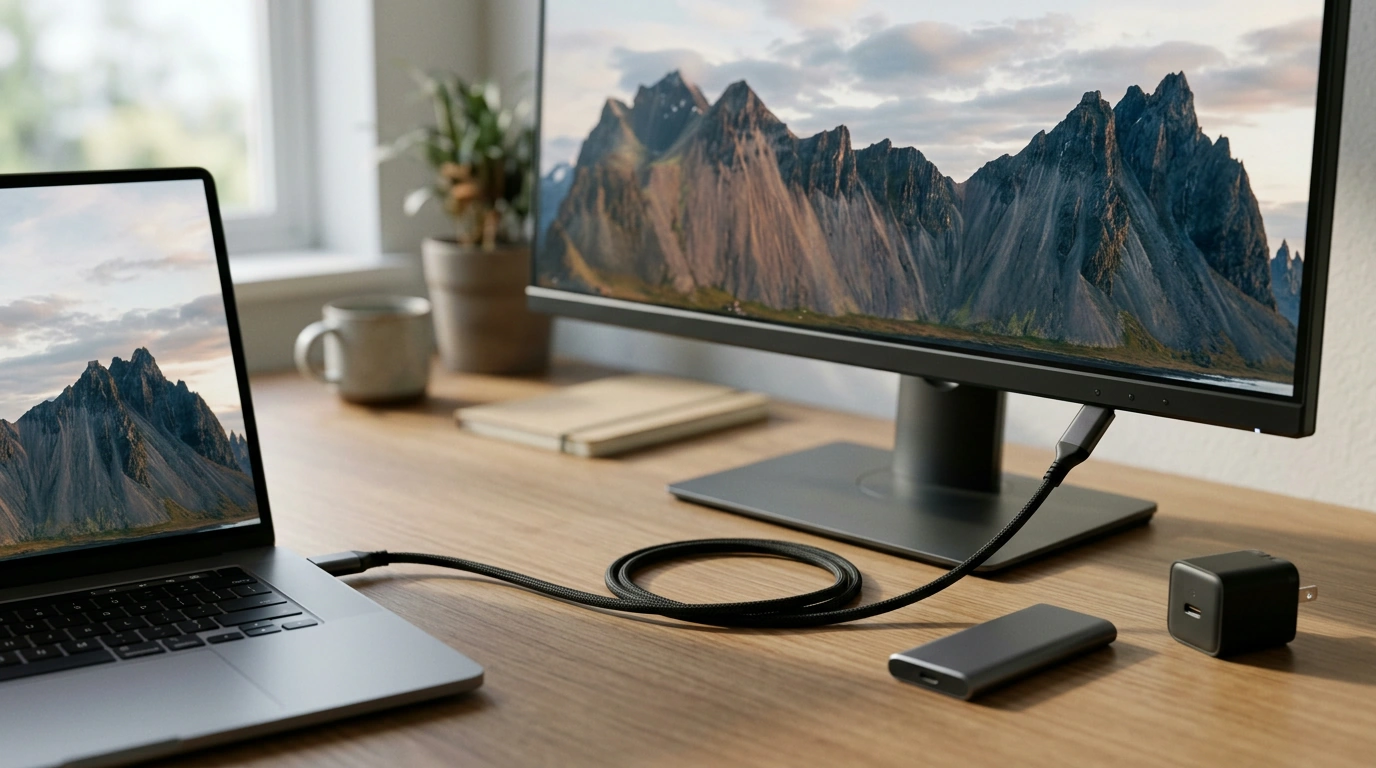
A USB-C cable can look like any other cable while offering a very different mix of capabilities. Our 100W USB Type C to USB C cable is listed for up to 100W charging, up to 10Gbps data transfer, and 4K video support. That makes it a useful option for a desk where you charge a device, move files, and connect a display. The key is matching each job to the ports and equipment at both ends of the cable.
Three jobs, one cable
One cable can make a USB-C setup feel simpler. You might charge a compatible laptop at your desk, connect a supported external drive to work on a project, and later use a video-capable port to connect a display. You do not need a separate cable for each of those tasks if the devices involved support the connection you want to make.
The listed numbers describe what the cable supports, not what every setup will deliver. Plugging it into a low-power charger will not create 100W charging. Connecting a drive to a slower port will not produce 10Gbps transfers. Likewise, a USB-C port that cannot output video will not send a picture to a monitor just because the cable supports 4K video.
Match the cable feature to the rest of your setup
| Cable feature | What else you need | Typical use |
|---|---|---|
| Up to 100W charging | A compatible USB-C charger and a device that accepts the desired power level | Powering a compatible laptop or other USB-C device |
| Up to 10Gbps data transfer | Compatible ports and storage or other peripherals | Moving large files between supported devices |
| 4K video support | A video-capable USB-C source and compatible display connection | Connecting a supported laptop to a 4K display |
Get the charging speed your device supports
Start with your device’s charging requirements, then compare them with the USB-C charger’s output. USB Power Delivery lets a compatible charger and device negotiate an appropriate power level. Our cable’s up-to-100W rating means the cable can serve a compatible setup within that rating; it cannot make a charger supply more power or make a laptop accept more than either supports.
This distinction matters if you are replacing a cable because charging feels slow. Before buying, look at the charger’s labeled output and your laptop or tablet’s USB-C charging specifications. If the charger is the limiting part, a different cable alone will not raise its output. If the device accepts less than 100W, that is normal—the cable does not force the highest available power into it.
For a broader explanation of how USB technologies are defined, the USB Implementers Forum is a useful reference. For your purchase decision, the practical question is simpler: do your charger and device support the charging level you want, and is your cable rated to carry it?
Plan for fast file transfers
Our cable’s listed maximum data-transfer capability is 10Gbps. That gives you room to use compatible faster ports and peripherals, but actual transfer speed depends on the full path. Your computer’s USB-C port, the external drive or enclosure, and any hub or dock between them can each impose a lower limit. File size and drive performance also affect how a transfer feels in everyday use.
Say you are moving a photo collection or a video project to an external drive. A cable that supports 10Gbps helps you avoid choosing a cable with a lower listed data capability, provided the computer port and drive also support the connection. It does not guarantee that a particular project will finish transferring in a particular number of minutes.
Do not rely on the connector shape alone. Two USB-C ports may look identical yet support different data speeds. If faster transfers are important to you, look up the specifications for both connected devices, including the drive enclosure if you use one. When you work through a dock, its ports and upstream connection matter too.
Check your display connection before plugging in
For video, begin at the source: can your laptop or tablet send a display signal through the USB-C port you plan to use? Next, look at the monitor, dock, or adapter. It must accept a compatible connection from that source. The cable’s 4K video support is useful when the rest of that path supports video as well; a USB-C charging or data port does not automatically become a display output.
If you are connecting through an adapter or dock, read its requirements rather than assuming every USB-C input works the same way. The DisplayPort over USB-C resource explains one way video can travel over a compatible USB-C connection. Because a complete setup determines the result, we would not choose a cable based on an assumed refresh rate, video mode, or dock arrangement that has not been specified.
Make the most of a simpler USB-C setup
When the rest of your equipment is compatible, our 100W USB Type C to USB C cable is an affordable way to cover charging, files, and display use with one cable. If you are also organizing the work you do at that desk, our Everyday AI Magic Checklist is a separate digital download for productivity ideas—not an accessory needed for the cable or its features.
FAQ
Will this cable charge every USB-C laptop at 100W?
No. Its listed rating is up to 100W; delivered power depends on the charger, laptop, and their supported USB Power Delivery settings.
Does a USB-C port automatically support 10Gbps transfers?
No. Check the specifications of both connected ports and devices. The slowest part of the connection can limit transfer speed.
Can I use this cable with any USB-C port to connect a 4K monitor?
Not necessarily. The source port must support video output, and the display connection must be compatible. Check your device specifications before connecting.



Leave a comment