Picture Perfect: A Practical AI Photo Editing Guide
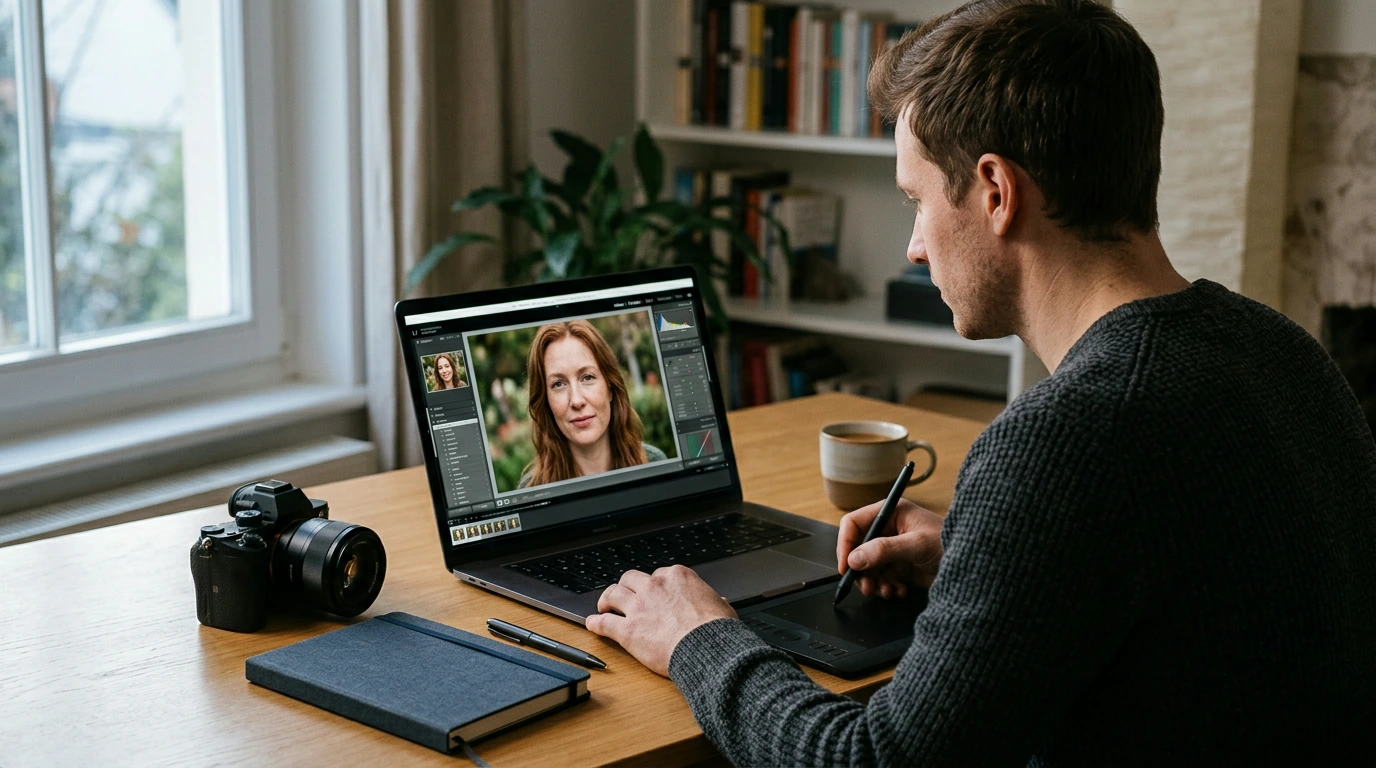
A great photo edit starts with a decision, not a dramatic filter. Are you trying to make a dim image easier to see, remove a distraction, or create something that never existed in the original scene? AI tools can help with all three, but each calls for a different level of care. Our Picture Perfect: Ultimate Guide on How to Use AI for Image Editing is for anyone who wants a more confident approach to enhancement, retouching, and transformation. Here is a practical routine you can use to stay in control of the result. For more guidance, see “I’m happy even though it’s not real”: GenAI Photo Editing ….
Start with the result you want
Before opening an editing tool, describe the change you want in one sentence: “Brighten the room without washing out the window,” for example. A clear goal makes it easier to choose an adjustment and recognize when you are done. Save the untouched original, then edit a copy. That gives you room to experiment without making any change permanent. For further reading, see Top AI Photo Editing Tools Taking Over in 2026.
It also helps to separate improvements from changes to the scene itself. Adjusting exposure can make existing details more visible; removing a person or replacing a background changes what the image depicts. Neither category has to be off-limits, but knowing which one you are doing helps you make appropriate decisions about accuracy and sharing.
Use AI enhancement without losing the natural look
For a first pass, adjust exposure and color. Look at the overall brightness, then at areas where detail matters: a face, a bright sky, or a dark coat. If the image is grainy or soft, try moderate noise reduction or sharpening after those basic corrections. More processing is not automatically better; excessive smoothing can erase texture, while sharpening can create bright outlines around edges.
Inspect the result at full size rather than relying only on a small preview. Faces, hair, printed text, and fine patterns often reveal artifacts first. Toggle between the edit and the original. If an effect draws your attention away from the subject, reduce it or apply it more selectively. For an overview of common editing controls, see Google Photos Help’s photo editing guide.
Retouch with a light touch
AI-assisted removal can be useful for a temporary distraction, such as a small object at the edge of a frame, or for tidying a background. Begin with the specific area you want to change instead of asking the tool to rebuild more of the image than necessary. Afterward, inspect the surrounding edges, shadows, and repeated textures. A removed object can leave behind a strange reflection or a pattern that looks copied and pasted.
When people appear in a photo, preserve the features that make them recognizable unless they have agreed to a different kind of edit. Context matters, too. A playful portrait has different expectations from a professional headshot or an image presented as a record of an event. If a change could mislead someone about a person or scene, be transparent about it.
Choose the right edit for the job
Use this table as a starting point, not a promise of perfect one-click results. The smallest edit that accomplishes your goal is usually the easiest to evaluate and revise.
| Photo goal | Start with | Check before sharing |
|---|---|---|
| Brighten a dim image | Exposure and color adjustments | Highlights and skin tones |
| Clean up a busy scene | Selective object removal | Repeated textures and unnatural edges |
| Improve a soft or grainy image | Moderate sharpening or noise reduction | Waxy detail and halos |
| Create a new visual style | A clearly directed transformation | Whether the result still fits its intended use |
If a modest adjustment works, stop there. If it does not, move to a more targeted edit rather than applying several strong effects at once. This approach makes it easier to identify what helped—and what introduced a problem.
Transform photos with clear direction
Creative transformation gives you more freedom, but clear instructions still matter. When using a text-directed editing feature, specify the mood and color palette you want, then name the elements that must remain unchanged. You might ask for a warm, cinematic atmosphere while keeping a person’s face, pose, and clothing intact. Make one substantial change at a time so you can judge whether the new result serves your goal.
These tools may generate content rather than simply adjust existing pixels. Adobe’s Generative Fill guidance describes ways to add, remove, or alter image content. Inspect any generated area closely, especially where it meets the original. If a heavily transformed image could be mistaken for an unaltered scene, label it clearly when sharing it.
Build a repeatable editing routine
Keep the process simple: set a goal, protect the original, make a restrained first pass, inspect important details, and export a copy suited to its destination. A photo for a small social post and one for a large print may need different final checks. Review the exported file, not just the working preview, to make sure it still looks right.
If you want guidance focused on enhancing, retouching, and transforming photos, explore our Picture Perfect guide. For broader ways to bring AI into daily tasks, our Everyday AI Magic Checklist offers a separate starting point. Our team’s rule for photo editing remains straightforward: AI can speed up the work, but you decide what looks right and what is appropriate to share.
FAQ
Can AI edit a photo without making it look artificial?
Yes, especially when changes are selective and modest. Compare the edit with the original and inspect fine details before exporting.
Should I keep the original photo after an AI edit?
Yes. An untouched original lets you revise the edit or try a different approach later.




Leave a comment